Plan the itinerary
Guide · Planning together
Add stops for each day with places from Apple Maps, and everyone gets directions.
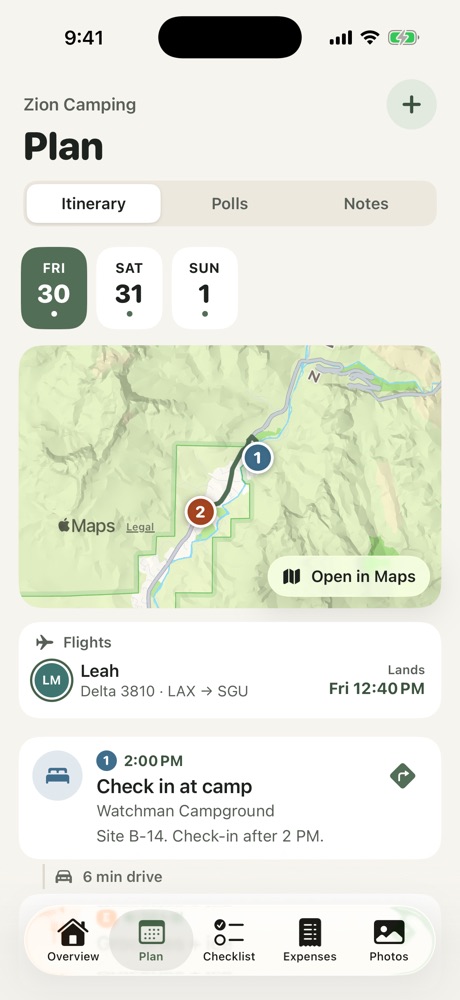
- Open the Plan tab and choose Itinerary.
- Pick a day, then tap Add a stop.
- Type the stop's name. Places from Apple Maps show up as you type: tap one to fill in the address.
- Optionally set a time, a type (Do, Eat, Stay, Travel or Other), who's going and a note. A Travel stop has a From and a To, like the airport to the hotel.
- Tap Save. The stop shows up on the day's map.
Tap the arrow on a stop for directions, or Open in Maps to see the whole day.
Changing plans
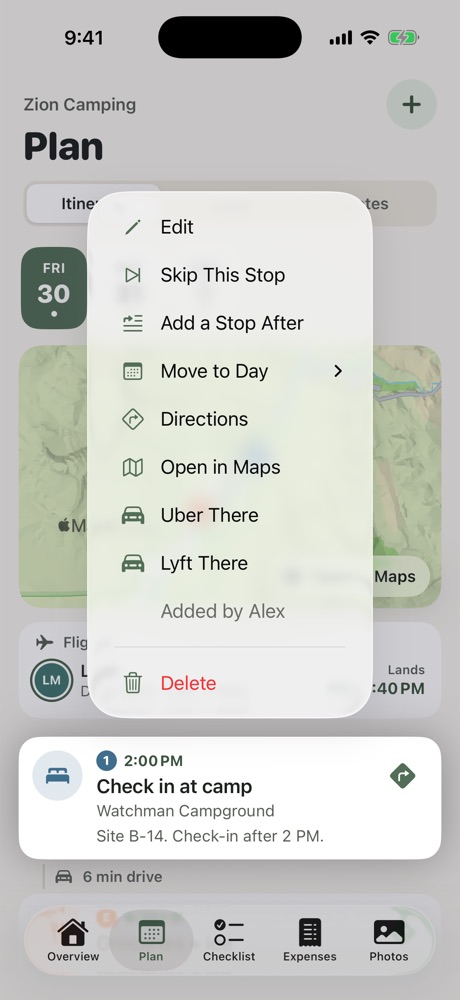
- Long-press a stop for its menu.
- Add a Stop After: insert a new stop right after this one.
- Skip This Stop: plans changed? The stop stays on the list, marked Skipped, and you can restore it.
- Move to Day: move the stop to another day of the trip.
- Uber There or Lyft There: open a ride app with the stop already filled in.
- Only If We Have Time: move a stop under the day's If we have time list, for ideas the group might get to.
Splitting up
When the group does different things, turn off Everyone under Who's going and pick who's going to that stop. The stop shows who's going, and only they get it in Up next and their calendar.
Tip: Short on time? Tap Describe the day to Freya and type something like "early hike, then tacos, sunset at the overlook". See Ask Freya.
More in Planning together
- Use the shared checklist
- Bring in a plan from a doc or AI chat
- Run a poll
- Stay, flights and the meetup
- Notes, search and calendar
- Ask Freya
Still stuck? Email contact@freyatripplanner.com or search the guide.